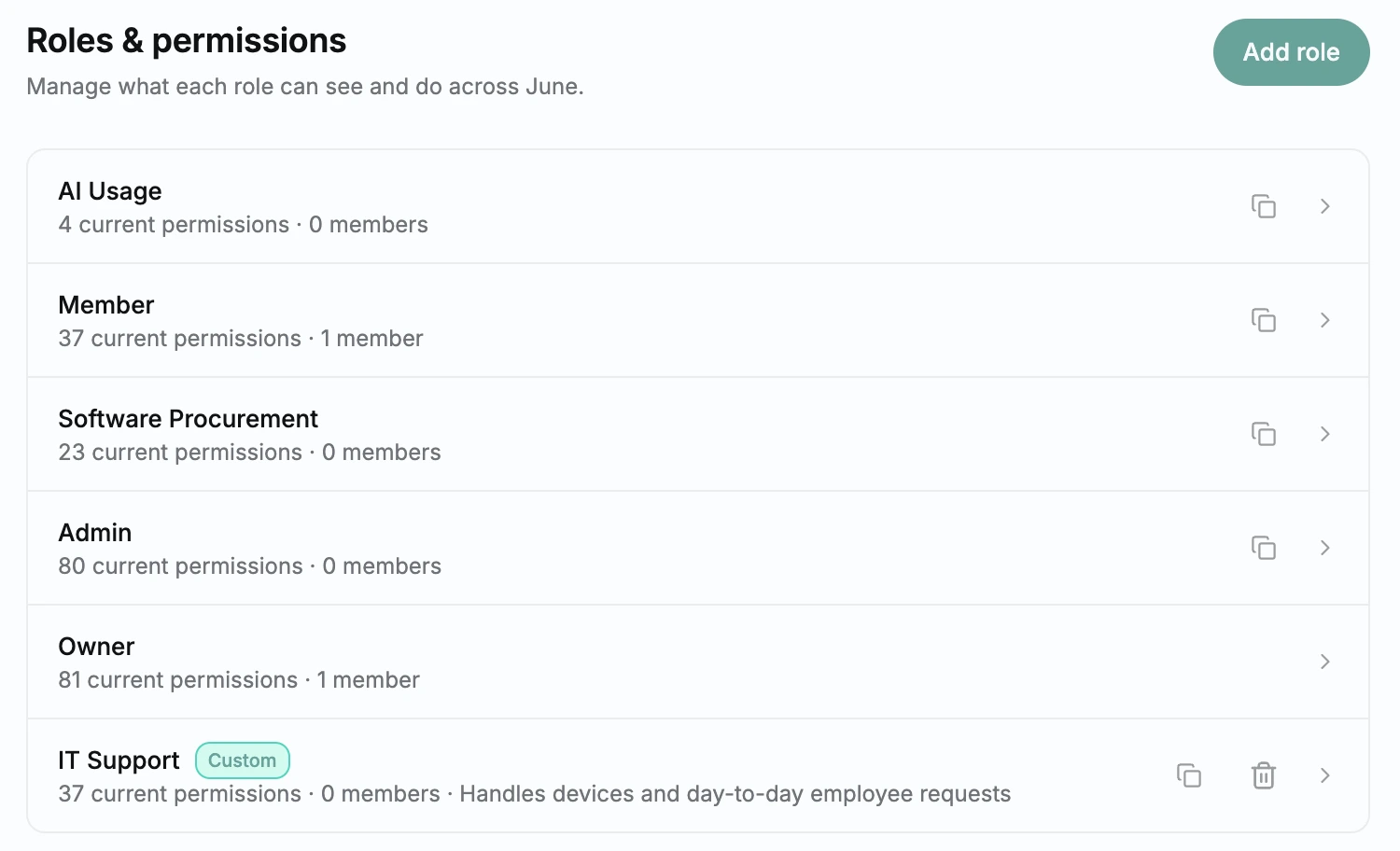
June had three roles, Owner, Admin and Member, and that was it. If you wanted finance to see spend without seeing everything else, there was no way to carve that out. You either kept people out of June entirely or gave them more access than their job needed, including in chat.
Now every person has one or more roles that set what they can see, what they can change and what June can do for them in chat. Use the built-in roles as they are, or build a custom role with exactly the access a team needs.
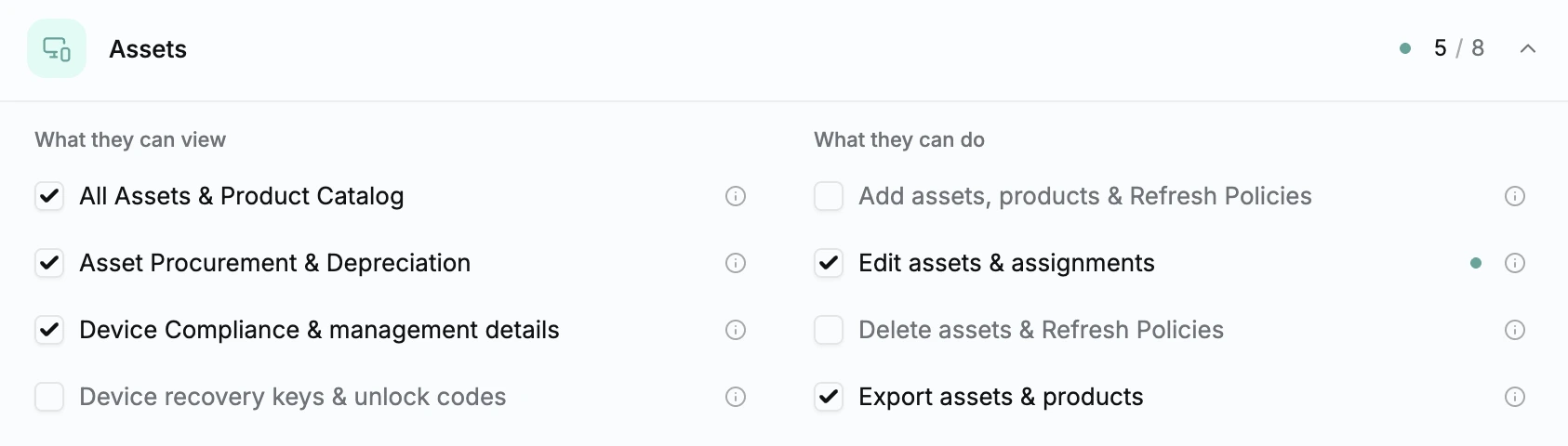
Build a Role: Start from an empty role or copy an existing one in Settings > Roles, then switch individual permissions on or off, grouped by area and split into what someone can view and what they can do.
Tool Access: Allow or block individual tools for a role, including integration tools like Okta, Jamf, and Google Workspace.
Preview Access: See exactly what a role grants before you save it.
Adjust Built-in Roles: The Owner can change what any built-in role includes, except Owner.
More Than One Role: Give a person several roles from Settings > Members, and their access combines.
No Escalation: Admins can only hand out access they have themselves.
Immediate Effect: Role changes apply right away, and removing access takes effect even in open chats. Newly added access doesn’t reach chats that are already open.